
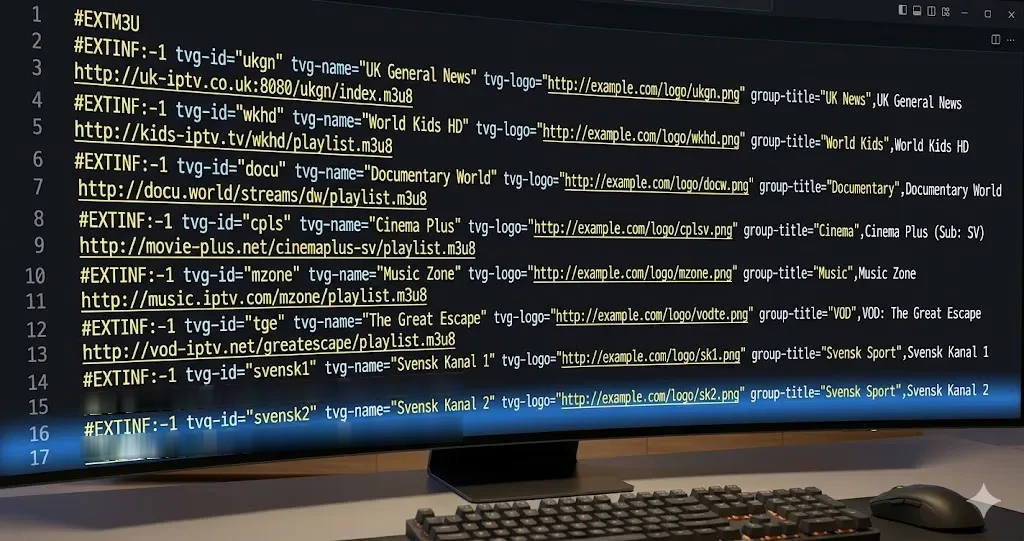
The M3U playlist URL is the foundational protocol that connects your playback hardware to our streaming servers. When you order an IPTV Testline subscription or trial line, you receive a digital playlist link containing the direct video addresses, category headers, and metadata for tens of thousands of channels. Understanding how to correctly import this link into your player application ensures a smooth, trouble-free television experience.
In this comprehensive step-by-step tutorial, you will learn the inner workings of M3U and M3U8 files, how to import playlist URLs into the industry's most popular streaming players, and how to troubleshoot common connectivity errors such as authentication failures and missing TV guides.
Understanding the Anatomy of an M3U Playlist URL
An M3U (Moving Picture Experts Group Audio Layer 3 Uniform Resource Locator) file is essentially a plain-text playlist format that instructs media software where to retrieve audio and video streams over the internet.
When generated by a modern streaming provider, the link takes the form of an M3U Plus (M3U_Plus) URL, which contains extended attributes:
http://server-domain.com:port/get.php?username=USER&password=PASS&type=m3u_plus&output=ts
Breaking down this URL structure reveals how your player communicates with the server:
- Server Host & Port: The web address and network port directing traffic to our high-speed content delivery network (CDN).
- Username & Password: Your unique authentication credentials validating your active subscription period.
- Type (m3u_plus): Instructs the server to return enriched channel metadata, including channel logos (
tvg-logo), EPG channel identifiers (tvg-id), and bouquet category names (group-title). - Output Format: Determines whether live streams are delivered as MPEG Transport Streams (
output=ts) or HTTP Live Streaming (output=m3u8).
M3U URL vs. Xtream Codes API: Which Should You Use?
While standard M3U links work across virtually every media player in existence, entering a 100-character URL using a television remote control can be tedious and prone to typos.
Whenever possible, we recommend using the Xtream Codes API login method within applications like TiviMate or IPTV Smarters Pro. Instead of typing the entire string, you simply enter your Server URL, Username, and Password into three separate boxes. Xtream Codes also handles Electronic Program Guide (EPG) synchronization automatically, eliminating the need to manually paste a second XMLTV guide link.
Step-by-Step: Adding an M3U URL to Popular Players
1. Loading M3U into TiviMate IPTV Player
- Launch TiviMate on your Fire TV or Android TV device and select Add Playlist.
- Choose M3U playlist as the playlist type.
- Select Enter URL and carefully type or paste your full M3U Plus link.
- Click Next. TiviMate will connect to the server and display the total number of channels and bouquets found.
- Assign a name to the playlist (e.g.,
testline iptv) and click Done to begin streaming.
2. Loading M3U into VLC Media Player (Windows / Mac / Linux)
- Open VLC Media Player on your computer.
- In the top menu bar, click on Media (or File on Mac) and select Open Network Stream (shortcut:
Ctrl + N). - Paste your M3U playlist URL into the network URL field.
- Click Play. VLC will download the playlist and begin playing the first channel.
- Press
Ctrl + Lto open the Playlist window, allowing you to search through and select any of the 40,000+ available live channels.
3. Loading M3U into Smart IPTV (Samsung & LG TVs)
- Launch the Smart IPTV app on your television and note the unique MAC Address displayed on the screen.
- On your computer or smartphone, open a web browser and navigate to
https://siptv.app/mylist/. - Enter your television's MAC address in the field labeled MAC.
- In the URL field, paste your full M3U Plus playlist URL.
- Select your country from the EPG drop-down menu (choose Germany) and check the box labeled Save online.
- Click Send. Restart the Smart IPTV app on your TV to load your channels.
Troubleshooting Common M3U Playlist Errors
If your player fails to load the playlist or displays an error message, review these proven troubleshooting solutions:
- Error 401 Unauthorized / Authentication Failed: This indicates that your username or password has been mistyped, or your trial period has elapsed. Carefully recheck case sensitivity and ensure no extra spaces were added during copy-pasting.
- Error 403 Forbidden: Occurs when attempting to stream on more than one device simultaneously, violating our single-device policy, or if an ISP-level DNS filter is blocking the server domain. Switching your router DNS to Cloudflare (1.1.1.1) or Google (8.8.8.8) typically resolves this.
- Playlist Failed to Parse / Parsing Error: Certain legacy media players cannot handle playlists containing over 40,000 items due to local device RAM constraints. Contact our WhatsApp support team to have your playlist filtered to only include your desired language bouquets (e.g., German, Sports, and Movies only).
Filtering and Customizing Large M3U Playlists
When your provider delivers a massive catalog containing over 40,000 live channels and 120,000 VOD titles, downloading the entire playlist every time you launch your player can consume substantial memory and slow down older devices.
To streamline your playlist and enhance navigation speed:
- Bouquet Selection in Xtream Codes: If you use Xtream Codes API in TiviMate or IPTV Smarters Pro, navigate to the app's playlist settings and choose Manage Groups. Here you can easily uncheck and hide foreign language categories you never watch (such as Asian, Scandinavian, or Arabic bouquets), leaving only German, Austrian, Swiss, and Sports channels visible.
- Using Playlist Editors (M3U4U): Advanced users can import their M3U URL into trusted cloud playlist managers like M3U4U. These free utilities allow you to reorder channel positions, delete unwanted categories, merge custom EPG XMLTV guides, and output a lightweight, personalized M3U link that loads in milliseconds.
- Automatic Playlist Refresh Intervals: Configure your player to refresh the M3U playlist once every 24 hours during off-peak night hours. This guarantees that newly added sports pop-up channels and movie releases appear automatically in your guide without disrupting your evening viewing.
Protecting Your Line Credentials
Your M3U playlist URL contains your unique account credentials within the URL parameters. Never share your link publicly on forums, social media, or with acquaintances. If our security systems detect simultaneous streams originating from distinct external IP addresses, the line will be automatically suspended to protect server integrity.
To learn more about streaming protocols, consult our detailed walkthrough on configuring Xtream Codes connections. When you are ready to upgrade your trial, review our transparent offers on our pricing packages page.