
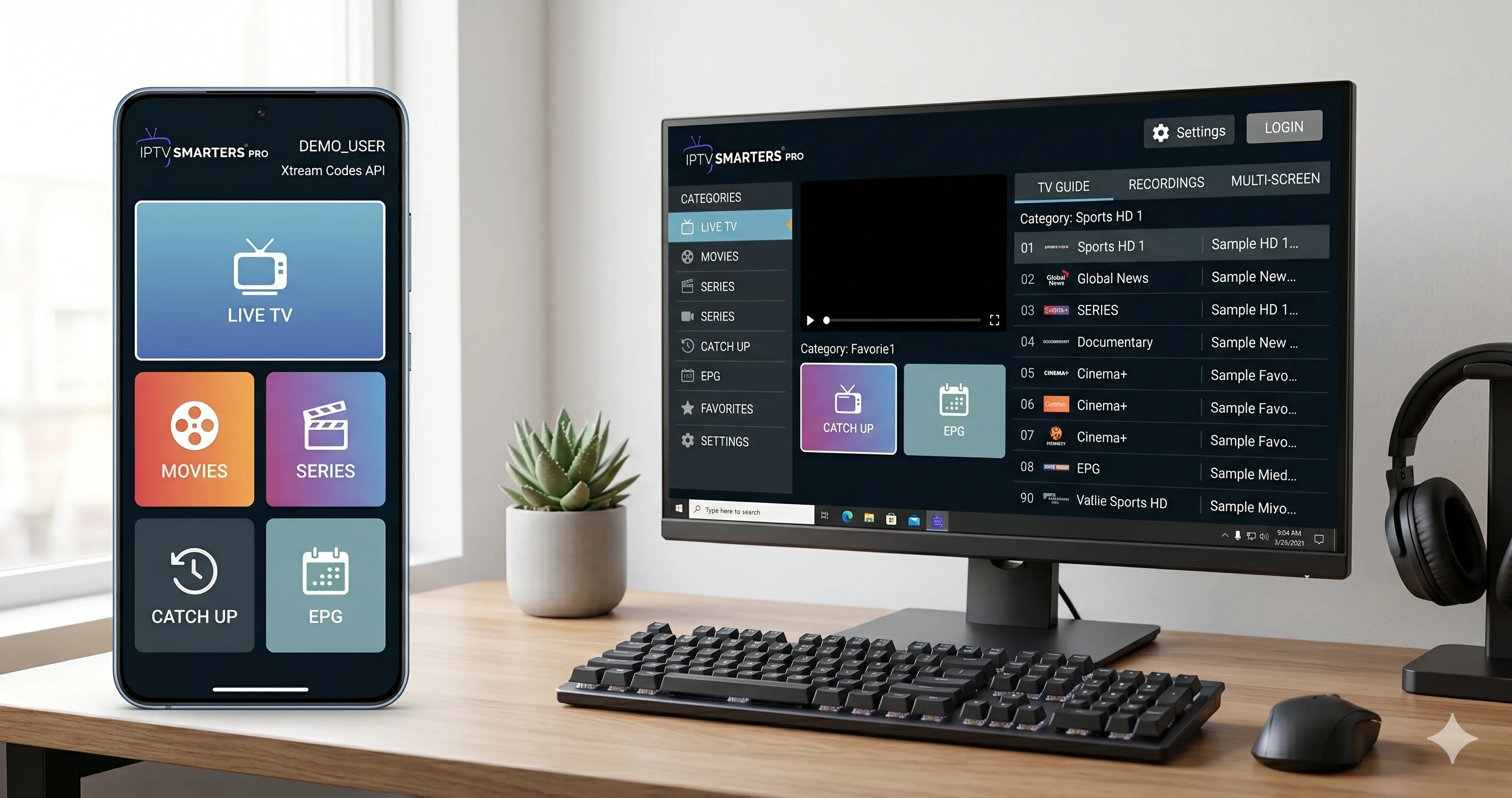
The Amazon Fire TV Stick is widely recognized as the premier streaming device for home entertainment. Combining affordable hardware, powerful video decoding capabilities, and an intuitive remote control interface, it serves as the ultimate platform for digital television. In this comprehensive step-by-step tutorial, you will learn exactly how to install an IPTV Testline on your Amazon Fire TV Stick to unlock thousands of live channels, sports, and movies.
Whether you own the entry-level Fire TV Stick Lite, the Fire TV Stick 4K, or the flagship Fire TV Cube, the installation process is straightforward. Because dedicated IPTV player applications are often not hosted directly on the default Amazon Appstore, we utilize a trusted sideloading utility called Downloader. Follow our verified setup instructions below to transform your television into a cutting-edge entertainment hub.
Why the Amazon IPTV Fire TV Stick is the Best Streaming Hardware
Investing in an IPTV Fire TV Stick setup offers numerous advantages over smart TV built-in applications. Television operating systems like Samsung Tizen or LG webOS frequently suffer from sluggish processors, memory limitations, and restrictive app stores that remove popular streaming players.
In contrast, the Amazon Fire OS ecosystem is built on Android, granting complete freedom to install top-rated media applications such as TiviMate and IPTV Smarters Pro. Furthermore, modern Fire TV hardware supports advanced video codecs including H.264, HEVC (H.265), and AV1, alongside Dolby Vision and HDR10+. This ensures that high-bitrate 4K streams render smoothly without dropped frames or hardware overheating.
Step 1: Preparing Your Fire TV Stick for Sideloading
Before installing external applications, you must enable developer permissions within your Fire TV system settings:
- From your Fire TV home screen, navigate to the Settings gear icon on the far right.
- Scroll down and select My Fire TV (or Device & Software on newer models).
- Click on Developer Options. Note: If Developer Options is hidden, select "About", highlight your device name, and press the remote's center button 7 times until a message appears saying "You are now a developer."
- Within Developer Options, turn ADB Debugging to ON.
- Select Install Unknown Apps (or "Apps from Unknown Sources") and ensure permissions can be granted to the Downloader application in the next step.
Step 2: Installing the Downloader Utility
The Downloader application is a secure browser and file retrieval tool developed by AFTVnews. It allows Fire TV owners to download application packages (APKs) directly from verified web servers:
- Return to the Fire TV home screen and select the Find (search) menu.
- Type Downloader into the search bar using the on-screen keyboard or voice remote.
- Locate the orange Downloader icon in the search results and click Get or Download.
- Once installation completes, launch Downloader and click Allow when prompted for storage access permissions.
- Navigate back to Settings > My Fire TV > Developer Options > Install Unknown Apps and verify that Downloader is toggled to ON.
Step 3: Downloading and Installing Your IPTV Player
With Downloader configured, you can now install your preferred streaming software. We recommend starting with IPTV Smarters Pro for its intuitive interface:
- Open Downloader and click on the URL input box on the Home tab.
- Enter the verified direct download code for IPTV Smarters Pro (or type
https://www.iptvsmarters.com/smarters.apk) and click Go. - The application package will download automatically. When prompted, click Install in the bottom right corner.
- After the installation finishes, select Done. You will be prompted to delete the APK installation file; click Delete twice to conserve valuable storage space on your Fire TV Stick.
Step 4: Configuring Your Line and Channel Directory
Now launch the newly installed IPTV Smarters Pro application from your apps library:
Choose the device type (select TV) and accept the terms of service. On the login screen, select Login with Xtream Codes API. This protocol is vastly superior to loading cumbersome M3U files manually because it organizes channels into distinct categories and automates EPG updates.
Enter the connection parameters provided by our support team:
- Any Name: Enter
testline iptv - Username: Your assigned account username
- Password: Your assigned account password
- Server URL: The exact server portal URL provided via WhatsApp (including port number)
Click Add User. The application will authenticate with our server cluster and download live channel lists, VOD directories, and program schedules within seconds.
Optimizing Fire TV Stick Performance for Zero Buffering
To ensure pristine playback quality during demanding 4K sports events, implement these hardware optimizations:
First, adjust your display settings by visiting Settings > Display & Sounds > Display > Match Original Frame Rate and toggle it to ON. This prevents judder by synchronizing your television's refresh rate (50Hz or 60Hz) with the broadcast source. Second, inside IPTV Smarters Pro settings, change the default stream format from HLS to MPEGTS for near-instant channel zapping.
For in-depth network tuning, review our companion tutorial on internet speed requirements for IPTV. When you are ready to expand your setup, explore our transparent subscription options on our pricing overview page.
Advanced Fire TV Wi-Fi and Cache Optimization
Streaming high-bitrate 4K content requires consistent, jitter-free network throughput. While standard internet browsing can tolerate brief signal dips, a live sports broadcast will instantly buffer if the Fire TV Stick drops packets.
To maximize your Fire TV Stick network stability:
- Connect to 5 GHz Wi-Fi: Always connect to your router's 5 GHz wireless band rather than the congested 2.4 GHz frequency. 5 GHz provides significantly higher data rates and lower latency, essential for 50fps sports broadcasts.
- Use the HDMI Extender Cable: The short flexible HDMI extender included in your Amazon Fire TV box is not just for convenience—it physically moves the stick away from the electromagnetic interference generated by the television's internal circuit boards and rear metal panel, dramatically boosting Wi-Fi reception.
- Clear App Cache Regularly: Over time, streaming applications accumulate large amounts of cached image thumbnails and temporary stream fragments. Navigate to Settings > Applications > Manage Installed Applications > IPTV Smarters Pro and click Clear Cache every few weeks to maintain peak operating speeds.
- Consider an Official Ethernet Adapter: If your Wi-Fi router is located in another room or separated by thick concrete walls, invest in an official Amazon Ethernet Adapter for Fire TV. A wired LAN connection guarantees zero packet loss and rock-solid stability during high-stakes championship games.
Pro Tips for Fire TV Stick Users
Always keep at least 1 GB of free storage on your Fire TV Stick to allow video buffers to operate without memory bottlenecks. Periodically restart your Fire TV Stick by holding the Select and Play/Pause buttons simultaneously for 5 seconds to flush cached background processes.