
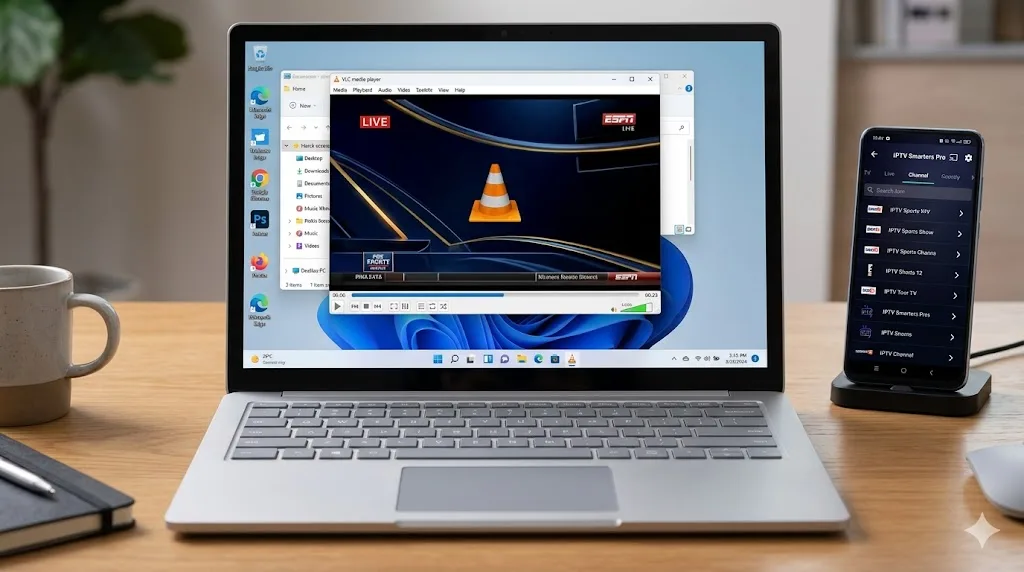
Among the diverse landscape of streaming software, IPTV Smarters Pro remains the most widely recognized and user-friendly application on the market. Engineered with a balanced combination of modern aesthetics and dependable decoding capabilities, it allows viewers to unlock the full potential of their IPTV Testline subscription. In this complete setup walkthrough, you will learn how to properly configure IPTV Smarters Pro on your Amazon Fire TV Stick for maximum stability.
While installing the application is relatively simple, fine-tuning its advanced settings—such as hardware acceleration decoders, buffer sizing, stream protocols, and EPG refresh intervals—is what separates a mediocre streaming experience from a flawless, broadcast-quality television setup. Follow our comprehensive tutorial below to get started.
Why IPTV Smarters Pro is the Top Choice for Fire TV
The primary reason IPTV Smarters Pro is celebrated worldwide is its intuitive layout. When streaming thousands of channels across multiple languages, having an application that cleanly categorizes content into Live TV, Movies, and TV Series is crucial.
Furthermore, IPTV Smarters Pro natively supports the Xtream Codes API protocol. Rather than forcing users to type long, cumbersome playlist URLs containing hundreds of random characters with a TV remote control, Xtream Codes allows you to log in with a simple Server URL, Username, and Password. The app then automatically pulls channel groupings, logos, and Electronic Program Guides directly from the server.
Prerequisites: Preparing Your Amazon Fire TV Stick
Before you begin the installation, ensure your Amazon Fire TV Stick is connected to your local Wi-Fi network and has the Downloader app installed:
- From the Fire TV home screen, open Settings > My Fire TV > Developer Options.
- Enable Apps from Unknown Sources (or enable Downloader under Install Unknown Apps).
- If Developer Options is not visible on newer Fire OS versions, navigate to Settings > My Fire TV > About, highlight your Fire TV model, and click the center remote button 7 times consecutively until the notification "You are now a developer" appears.
Step-by-Step Installation via Downloader
Follow these precise steps to download and install the official APK package:
- Launch the Downloader application from your Apps row.
- In the URL input field, enter the direct download code for IPTV Smarters Pro or enter
https://www.iptvsmarters.com/smarters.apkand press Go. - Wait for the download progress bar to reach 100%. The installation dialog will pop up automatically.
- Click Install in the bottom right corner of the screen.
- Once completed, select Done. To keep your Fire TV Stick running swiftly with ample storage, click Delete on the prompt to purge the downloaded APK file.
Logging In with Xtream Codes API
Launch IPTV Smarters Pro from your home screen. When prompted, select TV mode as your display layout and accept the user agreement.
On the main login screen, click the option labeled Login with Xtream Codes API. You will be presented with four straightforward fields:
- Any Name: Enter an identifier such as
testline iptv. - Username: Enter your dedicated line username provided by our WhatsApp support team.
- Password: Enter your secure account password.
- Server URL / URL:Port: Enter the exact portal URL provided (e.g.,
http://domain-server:port). Ensure there are no trailing spaces or typographical errors.
Click Add User. The application will connect to our server cluster, authenticate your active subscription, and download channel bouquets, movie posters, and TV series metadata in less than 30 seconds.
Crucial Settings: Optimizing Buffering and Video Decoders
To achieve smooth playback without freezing during live sports broadcasts, apply these expert settings inside IPTV Smarters Pro:
1. Switch to Native Hardware Decoder: Navigate to the app's Settings gear > Player Selection. By default, the app uses its built-in software player. Change the player engine for Live TV and Movies to Hardware Decoder (or select external VLC if installed). This offloads video decompression directly to the Fire TV graphics chip, ensuring stutter-free 4K rendering.
2. Adjust Stream Format: Go to Settings > Stream Format and switch the protocol from default HLS (m3u8) to MPEGTS (.ts). MPEGTS delivers near-instantaneous channel switching and reduced transmission latency during live television broadcasts.
3. Enable Automatic EPG Refresh: Visit Settings > Time Format & EPG and set the EPG schedule to update automatically every 24 hours. This ensures you always have up-to-date program information for upcoming Bundesliga fixtures and prime-time films.
Customizing Subtitles and Multi-Language Audio
Modern international television broadcasting delivers content with versatile linguistic options. IPTV Smarters Pro includes robust subtitle and audio channel engines that ensure you never miss a word of dialogue.
While streaming any live broadcast or on-demand film, pressing the remote's down arrow or OK button brings up the player control bar:
- Selecting Closed Captions & Subtitles: Click on the speech bubble icon to access available DVB subtitles or embedded Teletext captions. You can toggle between German, English, and other international subtitle tracks, or customize font sizing, text color, and background opacity for effortless reading on large displays.
- Multi-Audio Track Selection: Click the audio track icon to choose between alternative audio feeds. This is especially valuable during international sporting events, allowing you to select your preferred commentary language or enjoy ambient stadium acoustics.
- Aspect Ratio Adjustment: If older standard-definition broadcasts appear stretched or distorted, use the aspect ratio control to toggle between Original, 16:9, 4:3, and Zoom modes to preserve proper visual proportions without distortion.
Managing Your Favorites and Bouquets
With over 40,000 live channels available, navigating through international bouquets can be overwhelming. IPTV Smarters Pro makes organization effortless:
While browsing the Live TV channel list, simply hold down the center Select button on your Fire TV remote while highlighting any channel. A pop-up menu will appear allowing you to select Add to Favorite. All your starred channels will instantly appear in a dedicated "Favorites" bouquet at the very top of your guide, allowing you to access German national broadcasters and premier sports feeds in one click.
For additional hardware configuration advice, check out our guide on installing IPTV on Fire TV Stick. When you are ready to order your long-term plan, explore our flexible options on our subscription pricing page.