
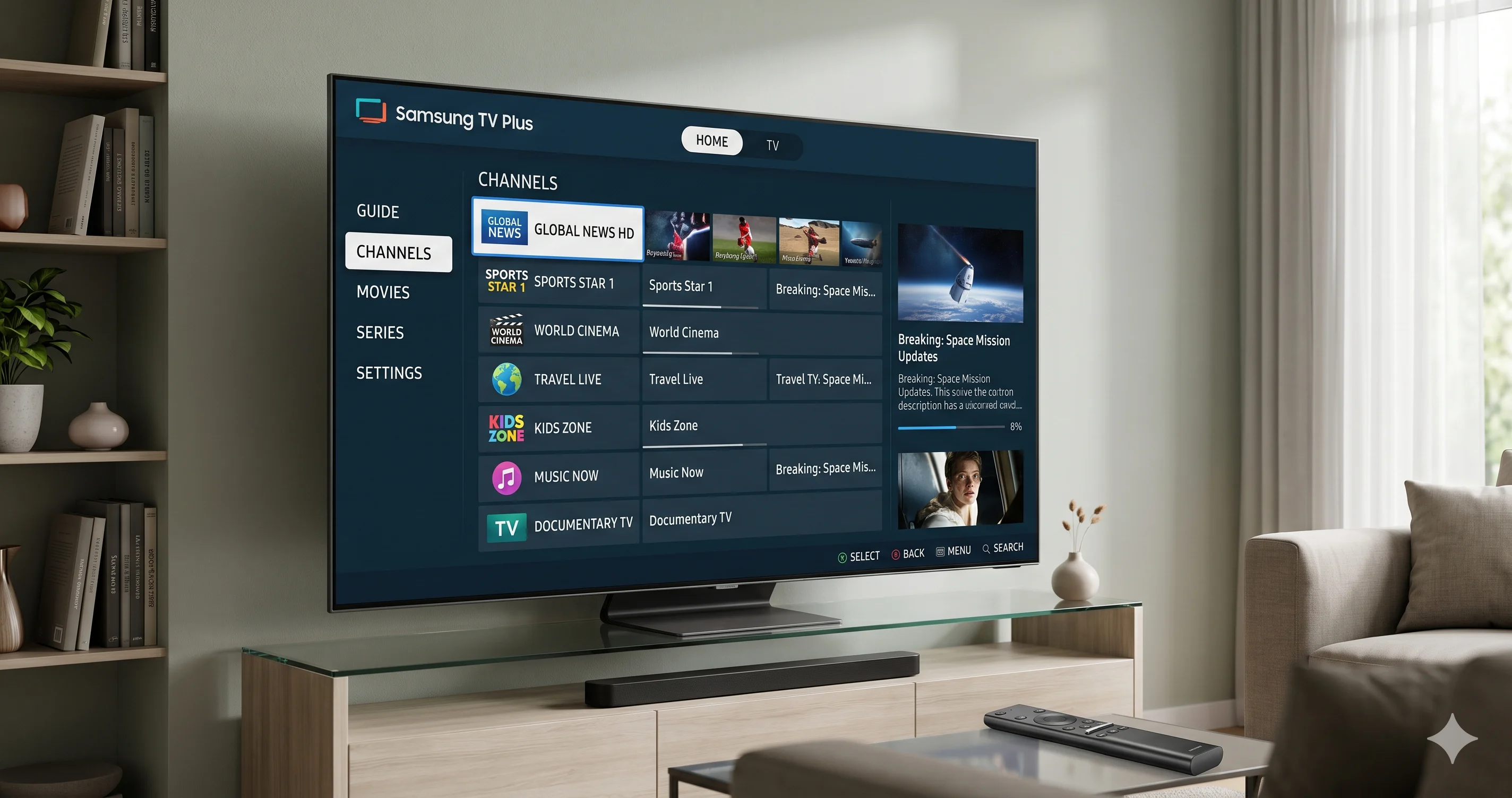
For viewers who prefer not to clutter their living room with external streaming sticks, HDMI cables, and multiple remotes, Smart IPTV (SIPTV) offers an elegant, all-in-one television solution. Designed specifically for smart TV platforms including Samsung Tizen and LG webOS, this popular application allows you to stream your IPTV Testline directly through your television's native interface using your standard TV remote.
In this straightforward setup tutorial, we guide you through installing the Smart IPTV application, locating your television's unique MAC address, uploading your M3U playlist via the web activation portal, and fine-tuning stream settings to ensure seamless 4K playback.
How the Smart IPTV (SIPTV) Ecosystem Works
Unlike conventional Android applications that store playlists locally on device storage, Smart IPTV operates on a web-portal synchronization architecture.
When you launch the app, your TV displays a unique hardware MAC Address. You then visit the developer's official web portal on your computer or phone, enter your MAC address, and paste your M3U playlist URL. The developer's server processes your playlist and synchronizes it directly to your television. This lightweight design prevents your smart TV's limited internal memory and processor from becoming overwhelmed by large channel catalogs.
Step 1: Installing the Smart IPTV App on Your TV
Locating and installing the application varies slightly depending on your television brand:
On Samsung Smart TVs (Tizen OS):
- Press the Home / Smart Hub button on your Samsung remote.
- Open the Apps store.
- Click the Search icon and type Smart IPTV.
- Select the app from the search results and click Install.
- Note for newer Samsung models: If Smart IPTV is unavailable in your region's Samsung App Store, you can easily install it via USB drive by downloading the official Tizen widget package from the developer's website.
On LG Smart TVs (webOS):
- Press the Home button on your LG Magic Remote to launch the dashboard.
- Open the LG Content Store.
- Search for Smart IPTV in the entertainment category.
- Click Install to download the application to your TV.
Step 2: Locating Your Television MAC Address
Once installation finishes, launch Smart IPTV from your TV home dashboard:
On the main splash screen, you will immediately see your television's unique hardware identifier displayed prominently (e.g., MAC: a1:b2:c3:d4:e5:f6). Write down this alphanumeric sequence carefully. You will need it to upload your subscription playlist in the next step.
Step 3: Uploading Your Playlist via the Web Portal
Now take out your laptop, tablet, or smartphone to configure your playlist:
- Open your web browser and navigate to the official portal at
https://siptv.app/mylist/. - Locate the section labeled Upload playlist to Smart IPTV.
- In the MAC field, type your television's MAC address exactly as shown on your TV screen.
- In the URL field, paste your full M3U Plus playlist URL provided by our WhatsApp support team.
- From the EPG Country dropdown menu, select Germany to ensure local TV guide metadata syncs accurately.
- Check the option labeled Save online to prevent your playlist from being cleared during TV firmware updates.
- Check the Detect EPG box.
- Click the Send button. A green confirmation message will appear stating "1 URL added successfully."
Step 4: Activating Your TV and Streaming
Return to your television. Press the red button on your remote control to restart the Smart IPTV application (or simply close and reopen the app). The application will connect to the portal and display your categorized channel bouquets.
Understanding the One-Time App License: The developers of Smart IPTV provide a complimentary 7-day trial of their software. Following the 7-day window, continuing to use the app requires a one-time activation fee of €5.49 paid directly to the app developers via their website (siptv.app/activation/). This fee goes entirely to the third-party app developers and is independent of your testline iptv streaming subscription.
Samsung Tizen vs. LG webOS: Performance Comparison
While Smart IPTV runs seamlessly on both major smart TV operating systems, there are slight architectural nuances between Samsung Tizen and LG webOS:
- Samsung Tizen OS: Samsung smart TVs typically feature faster processor clock speeds and efficient memory management, resulting in rapid channel scrolling and snappy menu responsiveness. On certain newer Samsung models, the app may need to be refreshed via USB widget installation if absent from the local App Store.
- LG webOS: LG's implementation benefits greatly from the LG Magic Remote. The on-screen air-mouse pointer allows viewers to click directly on channel lists and navigation tabs, making channel selection and search queries remarkably fast.
- EPG Time Shift Synchronization: If you notice that program schedules on your TV are off by one or two hours, open Smart IPTV Settings on your TV (blue button) and adjust the EPG Time Shift setting (+1, -1, or 0) to align the electronic program guide with Central European Time (CET).
Network Bandwidth Recommendations for Smart TVs
Smart television Wi-Fi antennas are often located behind the display panel, which can lead to signal attenuation if your television is mounted flush against a wall or positioned far from your wireless access point.
To ensure consistent 4K Ultra HD streaming without buffering, we strongly recommend connecting your Samsung or LG Smart TV directly to your home router using a wired Cat5e or Cat6 Ethernet cable. If running a physical cable is impractical, consider utilizing a pair of Powerline Ethernet adapters or a dedicated 5 GHz Wi-Fi mesh repeater placed in the same room. A stable minimum download speed of 25 Mbps ensures instant channel zapping and pristine video clarity.
Optimizing Playback Settings for Zero Buffering
To prevent buffering during live sports broadcasts on your smart TV:
Press the Settings button (blue key on most remotes) inside Smart IPTV. Navigate to Stream Buffer and adjust the buffer size from default to Medium (5 seconds) or High (8 seconds). This creates a larger local data cache that smooths over momentary Wi-Fi fluctuations without interrupting your viewing.
For broader hardware advice, consult our tutorial on setting up IPTV on Smart TVs. When you are ready to secure an extended subscription, explore our competitive tiers on our subscription pricing page.